 Capterra
Export Capterra Reviews to CSV & Excel
Export software reviews from any Capterra listing to CSV, Excel or JSON. Overall rating and the four sub-ratings, pros and cons, review text and date, in one click.
Exporting Capterra reviews to CSV or Excel preserves what makes Capterra useful: per-category sub-ratings. The export keeps the overall rating, the sub-ratings for ease of use, customer service, features and value, plus the pros, cons and review date, so nothing is flattened into a single star count.
From Capterra page to spreadsheet, live
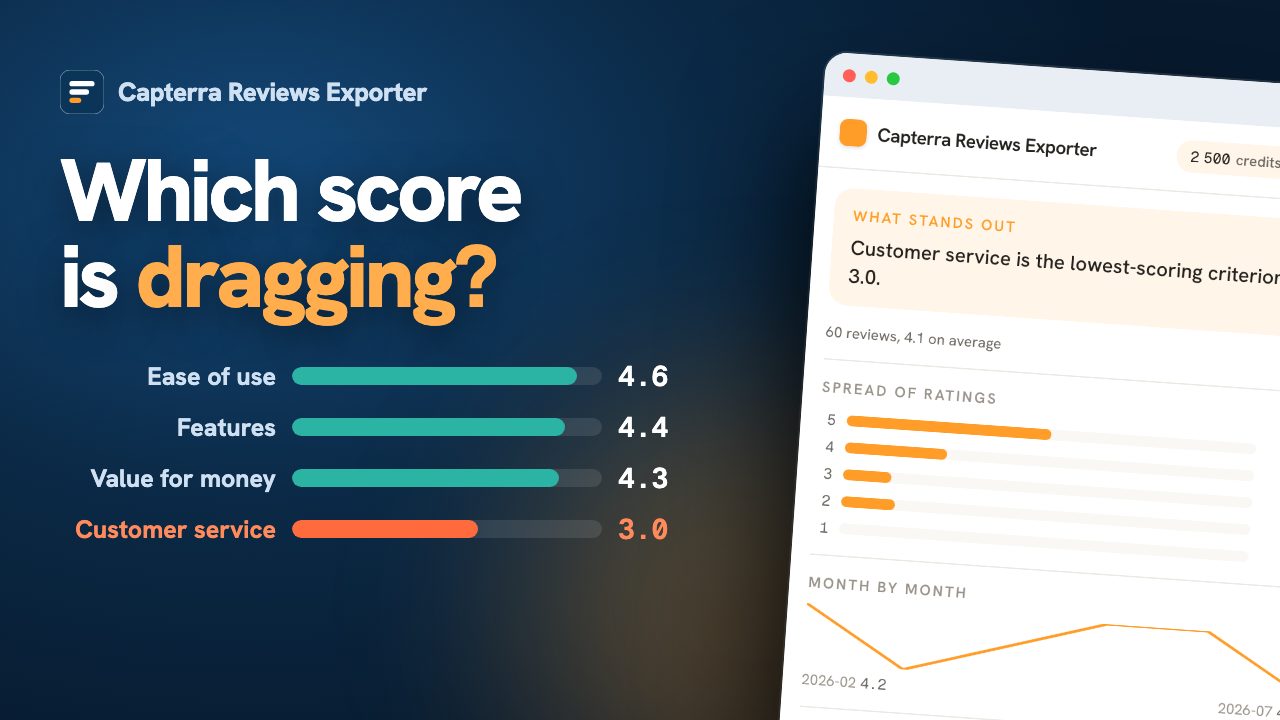
One score hides four
Capterra asks reviewers to grade a product on separate criteria instead of a single star: ease of use, features, customer service and value for money. The page then averages them into one headline number, which is precisely the operation that destroys the information. A product at 4.2 overall can be a joy to use and a nightmare to get help with, and the number will not tell you which. Exported with every criterion in its own column, the shape of the product appears in one glance, and so does the reason to hesitate. Buyers use it to decide what to press on during a demo. Vendors use it on their own listing to find the criterion quietly dragging the rest down, which is almost never the one they expected.
| Criterion | Average | Rated by |
|---|---|---|
| Ease of use | 4.7 | 412 reviews |
| Features | 4.5 | 412 reviews |
| Value for money | 4.3 | 361 reviews |
| Customer service | 3.1 | 344 reviews |
Export Capterra reviews in three steps.
Open a Capterra review page
Browse to the Capterra page whose reviews you want. You stay logged in with your own session.
Click the ExportReviews icon
The side panel detects the page, shows the entity and the number of reviews, and lets you pick filters.
Preview, then export
Reviews load into a live preview. Export to CSV, Excel (XLSX), JSON in one click, generated locally.
Fields exported from Capterra.
Only fields Capterra actually exposes, to CSV, Excel (XLSX), JSON. We never invent data.
Why export Capterra reviews.
Software buyers use Capterra to make up their minds, and the sub-ratings are where the real detail lives. Exported to a spreadsheet, you can compare those sub-scores across competitors, find the category a product is weak in, and do proper due diligence before a purchase.
Compare sub-ratings
Line up ease of use, support, features and value across competing tools in one grid.
Find category weaknesses
Spot the product that reviews well overall but scores low on a sub-rating you care about.
Buyer due diligence
Read the cons and value scores together before you commit to a vendor.
Built for software buyers, product marketers and analysts.
What the analysis reads on Capterra.
Capterra scores each review on four criteria instead of one. The panel averages each of them and names the one that decouples: that is the difference between knowing a product is rated 4.2 and knowing its support is the reason.
- The four criteria averaged separately, weakest first.
- The criterion that decouples, named only when the gap is wide enough to mean something.
- Themes drawn from the pros and cons the reviewer wrote himself, not guessed from the score.
One balance across every exporter.
1 credit = 1 row. Start free, no account. Credits never expire.
Insights
$14.99/moThe full analysis of the reviews you extract: what stands out, the breakdown by segment and by criterion, the recurring themes, and a shareable report you can export.
Adds to any plan and does not replace one: Insights analyses, it does not export rows. Everything is computed on your own machine. Included in Agency.
Capterra export, answered.
Are the sub-ratings really exported separately? +
Yes: ease of use, features, customer service and value for money each get their own column, alongside the overall rating. That separation is the whole reason to export from Capterra rather than read the page.
What happens when a reviewer skipped a criterion? +
The cell stays empty. It is never filled with a zero, which would invent a bad score for the vendor and drag any average you compute. Customer service and value for money are the two most often left unrated.
Is the reviewer's job title or company size included? +
No, and that is deliberate. Capterra shows job titles and company sizes on its pages, but not attached to an individual review, so a column claiming to hold them would be guessing. If you need to segment by company size, G2 publishes it per review.
How do I export Capterra reviews to CSV? +
Install the ExportReviews extension, open a Capterra review page, click the icon, then click Export CSV. The file is built in your browser.
Where does my data go? +
Nowhere. Extraction happens in your browser and the export file is generated locally. The backend only tracks export credits, never review content.
Which formats are supported? +
CSV, Excel (XLSX), JSON. CSV uses a UTF-8 BOM so accents and emoji open correctly in Excel.
Is there a free tier? +
Yes. The first 25 exported rows are free, without an account. Credits bought afterwards do not expire and are shared across every ExportReviews exporter.


